Department Revenue Report
The Department Revenue Report allows users to track the revenue generated from the following Transaction Types for the various Categories and Sub-Categories configured in the property:
-
Adjustment
-
Charge
-
Correction
-
Credit
-
Payment
-
Refund
-
Transfer
Perform the following steps to generate the report:
Navigate to Reports ➜ Dynamic Reports ➜ Revenue/Forecasting ➜ Department Revenue Report
Refer to the following table and fill in the fields.
|
Field |
Description |
|---|---|
|
Report Name |
Department Revenue Report. |
|
Date |
The date from which the report must be generated. Displays the current property date by default. Users cannot select a date greater than the current property date. |
|
Category |
Allows users to choose from the various categories configured at the property. The posted items are displayed grouped by each category of the transaction. |
|
Sub-Category |
Allows users to choose from the various sub-categories configured at the property. The posted items are displayed grouped by each sub-category of the transaction. |
|
Cashier |
Allows users to select from the various cashiers available at the property. When selected, the report displays the revenue posted by the selected cashiers. |
|
Include Inactive Cashiers |
When selected, the report displays the revenue posted by the inactive cashiers. |
Click Run to generate the report.
Click Save to save the report under User Favorites section.
Sample Report
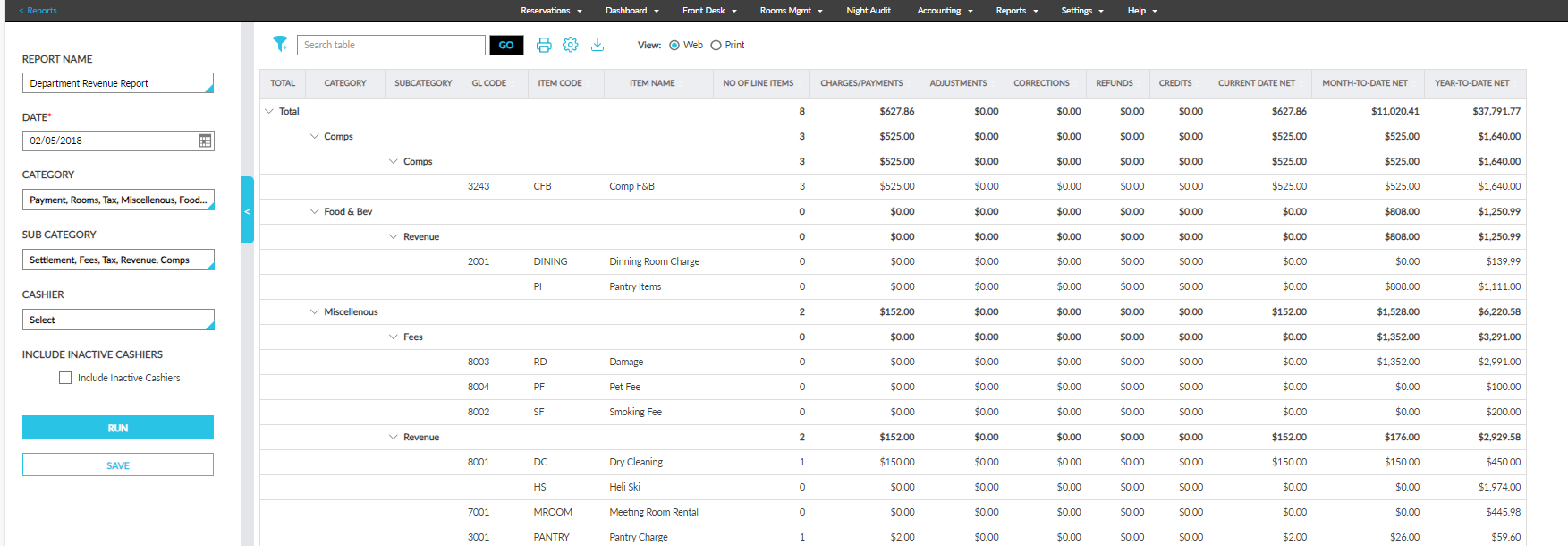
Report Fields
This report displays the following fields:
|
Field |
Description |
|---|---|
|
Total |
Displays the column-wise sum of all postings listed in the report. |
|
Category |
Displays the posted items grouped by category of each transaction with an accordion. Users can filter and search for a record using this column. |
|
Sub-Category |
Displays the posted items grouped by sub-category of each transaction with an accordion. Users can filter and search for a record using this column. |
|
GL Code |
Displays the GL code of the posted items. |
|
Item Code |
Displays the code of the posted items. |
|
Item Name |
Displays the name of the posted items grouped by category and sub-category of each transaction for the selected date. Users can filter and search for a record using this column. |
|
No of Line Items |
Displays the total number of items accounted for on the selected date. Users can search for a record using this column. This column can be sorted. |
|
Charges/Payments |
Displays the sum of all charges/payments for transactions posted by the selected cashiers. |
|
Adjustments |
Displays the sum of all adjustments for transactions posted by the selected cashiers. |
|
Corrections |
Displays the sum of all corrections for transactions posted by the selected cashiers. |
|
Refunds |
Displays the sum of all refunds for transactions posted by the selected cashiers. |
|
Credits |
Displays the sum of all credits for transactions posted by the selected cashiers. |
|
Current Date NET |
Displays the net result of the postings after excluding the adjustments and corrections for each item posted on the selected date. Users can search for a record using this column. This column can be sorted. |
|
Current Date VAT |
Displays the VAT for each item posted on the selected date. Users can search for a record using this column. This column can be sorted. |
|
Month to Date NET |
Displays the sum of the NET postings for the current month posted by the selected cashiers for the selected date. Users can search for a record using this column. This column can be sorted. |
|
Month to Date VAT |
Displays the VAT for the current month posted by the selected cashiers for the selected date. Users can search for a record using this column. This column can be sorted. |
|
Year to Date NET |
Displays the sum of the NET postings for the current year posted by the selected cashiers for the selected date. Users can search for a record using this column. This column can be sorted. |
|
Year to Date VAT |
Displays the VAT for the current year posted by the selected cashiers for the selected date. Users can search for a record using this column. This column can be sorted. |